
Speedify Local Load Balancer Mode Overview
This article explains what Speedify's Local Load Balancer bonding mode is, how it differs from Speedify's regular bonding modes, and how to enable it on your device.
What Is Speedify's Local Load Balancer?
In Local Load Balancer bonding mode, Speedify runs entirely on your local device or router. Instead of routing your internet traffic through Speedify's global VPN servers, this mode distributes traffic across your available network interfaces, such as Ethernet, Wi-Fi, 4G/5G cellular tethering, or USB dongles, directly on your device.
On Windows, starting with Speedify 17.2, Local Load Balancer uses round robin distribution by default. Speedify assigns new connections to each of your internet connections in turn.
Local Load Balancer is useful for:
- Failover between internet connections.
- Distributing application sockets across multiple internet connections.
- Balancing router client internet traffic across multiple internet connections.
Unlike Speedify's regular bonding modes, Local Load Balancer does not encrypt your data or tunnel it through Speedify's VPN servers.
How Local Load Balancer Compares to Regular Bonding
| Feature | Regular Bonding | Local Load Balancer |
|---|---|---|
| Traffic Encryption | Yes | No |
| Uses Speedify Servers | Yes | No |
| Failover Behavior | Seamless (sessions stay active) | Interrupted (connections may reset) |
| Single-Socket Bonding | Yes | No |
| Redundancy and Stream Optimization | Yes | No |
A few key differences to be aware of:
- Failover behavior: With regular bonding, if one connection drops, Speedify automatically reroutes your internet traffic over the remaining connections without breaking active sessions. With Local Load Balancer, losing a connection may disrupt ongoing traffic, such as file uploads or video calls. That said, Local Load Balancer does detect failures quickly and typically switches to a working connection within a couple of seconds. Some load balancing solutions can take minutes to notice a failure.
- Single-socket bonding: Regular bonding can split even a single-stream connection (like a large file upload or video stream) across multiple connections for faster upload and download speeds. Local Load Balancer distributes internet traffic across connections but does not provide single-socket bonding.
- Redundancy and stream optimization: Bonding with Streaming Enhancements provides redundancy and optimizes streams for smoother video, voice, and other real-time applications. Local Load Balancer does not provide these quality-of-service improvements.
Using Connection Priorities with Local Load Balancer
Local Load Balancer still respects your connection priorities, which control how internet traffic is distributed and how failover occurs.
Here is how the priority levels work:
- Primary connections - Speedify uses all Primary connections first. Internet traffic is balanced across them.
- Secondary connections - These are used only if all Primary connections fail. Internet traffic is then balanced across all Secondary connections.
- Backup connections - These are used only if both Primary and Secondary connections fail. Internet traffic is balanced across all Backup connections.
Some practical examples of how you might set this up:
- Failover setup: Set your main internet connection as Primary and your other connection(s) as Secondary. Internet traffic stays on the main connection under normal conditions. If the main connection goes down, traffic switches to the other connection(s).
- Load spreading setup: Set all connections as Primary. Internet traffic is distributed across all available connections.
How to Enable Local Load Balancer Mode
You can enable Local Load Balancer mode from the Speedify UI or the Speedify CLI (Command Line Interface).
Option 1: Enable via the Speedify App
- Open the Speedify app on your computer or router interface.
- Open the Settings menu (hamburger menu) in the top-left corner.
- Go to Bonding Mode.
- Select Local Load Balancer from the list of available modes.
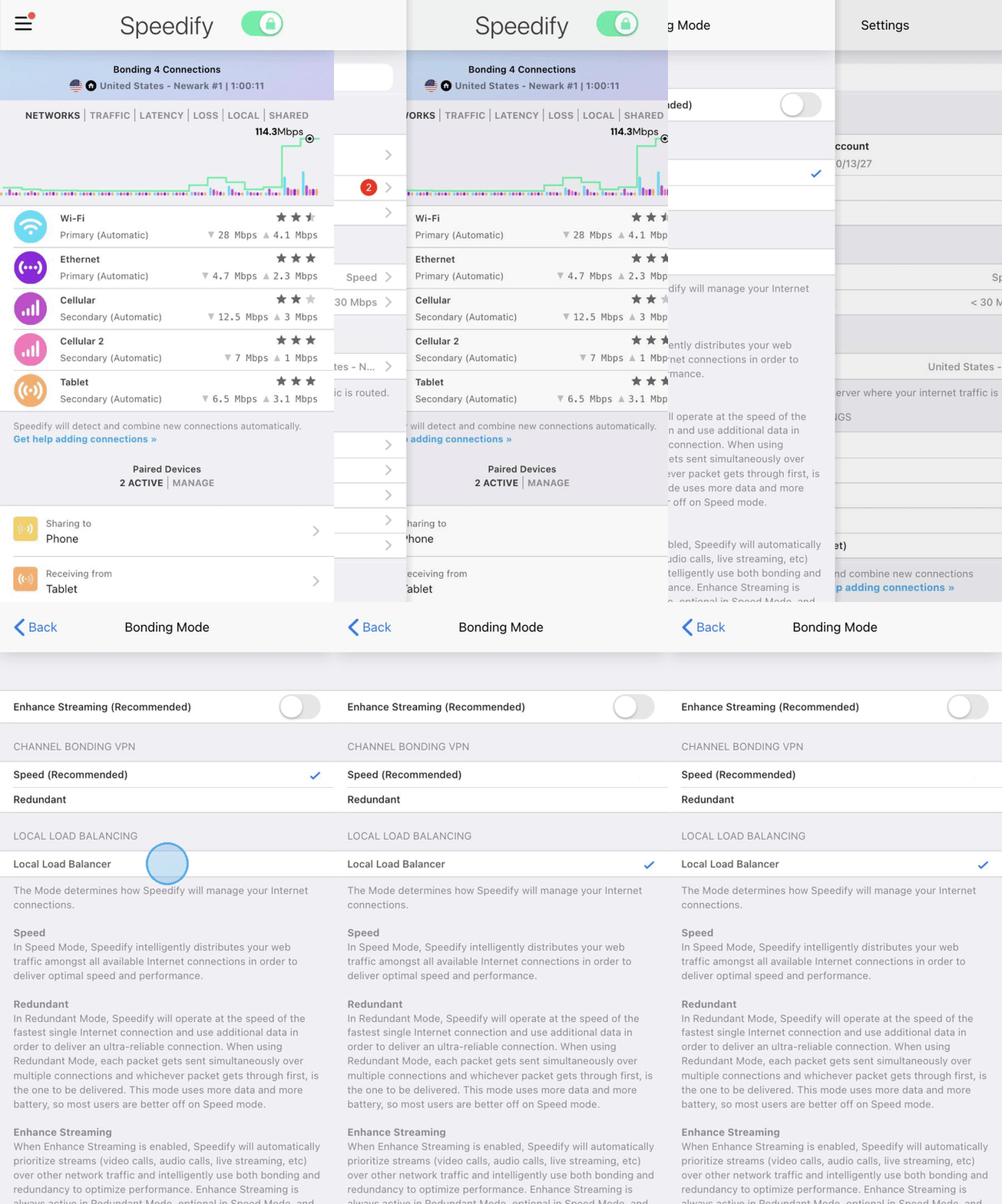
Option 2: Enable via the Speedify CLI
If you're running Speedify on a device without the Speedify app interface, you can use the Speedify CLI to switch modes.
- Open a terminal or SSH into your device.
- Run the following command:
speedify_cli connect proxy
For more details about using the command line, see the Speedify CLI guide.
Verifying Local Load Balancer Mode Is Active
You can confirm that Local Load Balancer is running by checking either of the following:
- The Speedify app - The top status bar will show Local Load Balancer.
- The Speedify CLI - Run the following command and look for the output below:
speedify_cli show currentserver
You should see:
"city" : "round_robin",
"country" : "proxy",
"dataCenter" : "",
"dnsIP" : [],
"friendlyName" : "Local Load Balancer"
Limitations of Local Load Balancer
Local Load Balancer works well for specific setups, but there are a few things to keep in mind:
- No VPN encryption or privacy protection is applied to your internet traffic.
- Without a Speedify server connection, features like streaming optimization, seamless failover, and single-socket bonding are not available.
If you need encryption, channel bonding with redundancy, or access to Speedify's worldwide servers, switch back to one of the other bonding modes.
Did you know - Speedify works on routers too, so every device on your network can benefit from faster upload and download speeds without needing to install anything on each device individually. Learn more about Speedify for Routers.