
Can I avoid going over my cellular data plan? You can, with Speedify
This article explains how to use Speedify's built-in data limits and priority settings to keep your 4G/5G cellular connection usage in check, so you don't rack up overage fees from your carrier.
How Data Limits Work in Speedify
When you first install Speedify, it gives you the option to set daily and monthly data limits on your cellular connection right away.
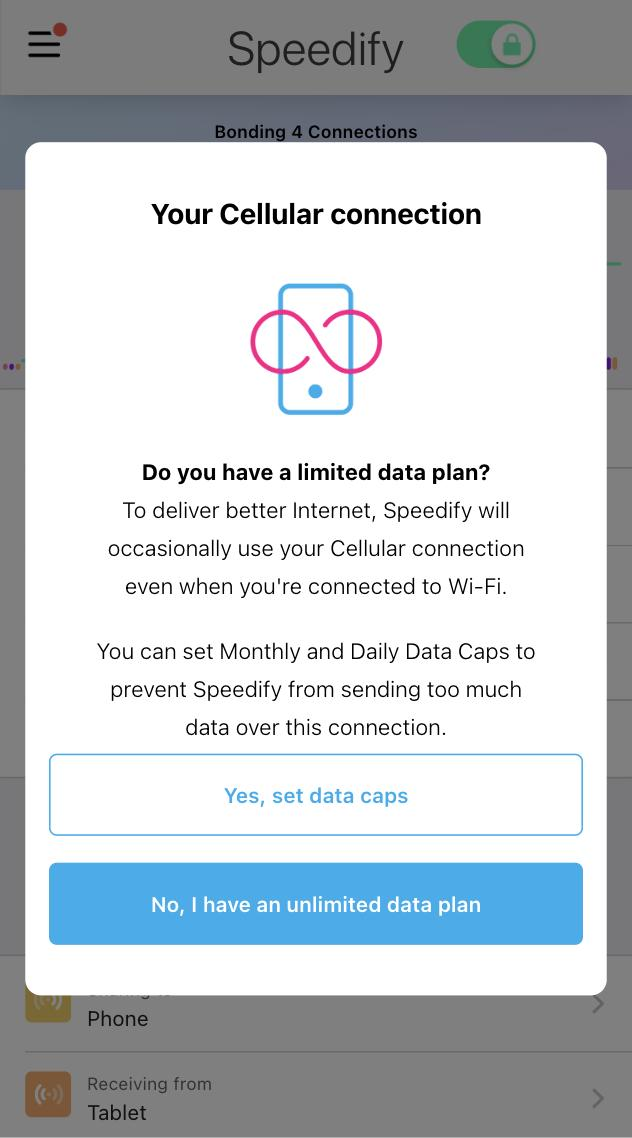
If you choose to set limits, Speedify defaults to 2 GB per month and 200 MB per day on your cellular connection. It also sets your cellular connection to Secondary priority, which means Speedify will prefer your Wi-Fi connection whenever it's fast enough. If your Wi-Fi connection can't keep up, Speedify brings in the cellular connection for a speed boost. If Wi-Fi fails entirely, it falls back to cellular automatically.
You can adjust all of these settings at any time by tapping the connection icon next to the cellular connection you want to manage.
Connection Settings
Daily Data Cap
The daily data cap limits how much cellular internet traffic Speedify sends through your cellular connection in a single day. A good starting point is 10% of your monthly limit. For example, if you set a 2 GB monthly cap, set your daily cap to 200 MB. This 10% rule gives you some flexibility, some days you'll use more, some days less.
When you hit the limit, Speedify stays connected but stops routing internet traffic through that connection. You'll be prompted to either continue using it or stop. Keep in mind that if cellular is your only active internet connection at that point, stopping it will take your device offline.

Monthly Data Cap
The monthly data cap limits how much cellular internet traffic Speedify routes through your cellular connection over the course of a month. Set this to a number lower than your actual carrier plan's cap, Speedify only measures usage while you're actively connected to Speedify. If you don't use Speedify 100% of the time, some cellular data will be used outside of Speedify's tracking.

Overlimit Behavior
The Overlimit Behavior setting controls what Speedify does when your cellular connection exceeds its daily or monthly data cap. You can choose to have Speedify stop using the connection entirely, or switch to a rate-limited mode.

Rate Limit
When Rate Limit is enabled, Speedify caps the maximum speed of your cellular connection to a value you choose. This keeps you connected even after you've hit your data cap, but slows that connection down to 5Mbps by default, enough to stay online without burning through extra data quickly. This is useful if going completely offline isn't an option for you.

Connection Priority
By default, Speedify sets your cellular connection to Secondary priority. This means Speedify uses it for speed boosts and failover, but less than connections set to Primary. For even more conservative cellular usage, you can switch the priority to Backup, Speedify will only use the cellular connection if your Wi-Fi or Ethernet connections stop working entirely.

Data Limits and Pair & Share
If you use Pair & Share to share your cellular connection with another device, Speedify automatically sets all Pair & Share connections to Secondary priority and limits them to 10 Mbps by default. This helps prevent the shared connection from eating through your cellular data faster than expected.
Did you know - You can change your connection preferences in Speedify, including how often and how much Speedify can use a particular connection? See Connection Settings to learn how to configure your connections.