
Speedify's Starlink Control Center Overview
This article explains how to use Speedify's Starlink Control screen to monitor your Starlink dishes, read obstruction maps, and align multiple dishes for better combined performance.
Starlink Control
Starlink Control is in the ☰ menu, and its cards appear on your Speedify dashboard when Speedify detects one or more Starlink connections. It gives you a real-time view of each dish's health and helps you position multiple dishes so they cover different sections of the sky, rather than overlapping and wasting your bonding capacity.
Starlink Summary Card
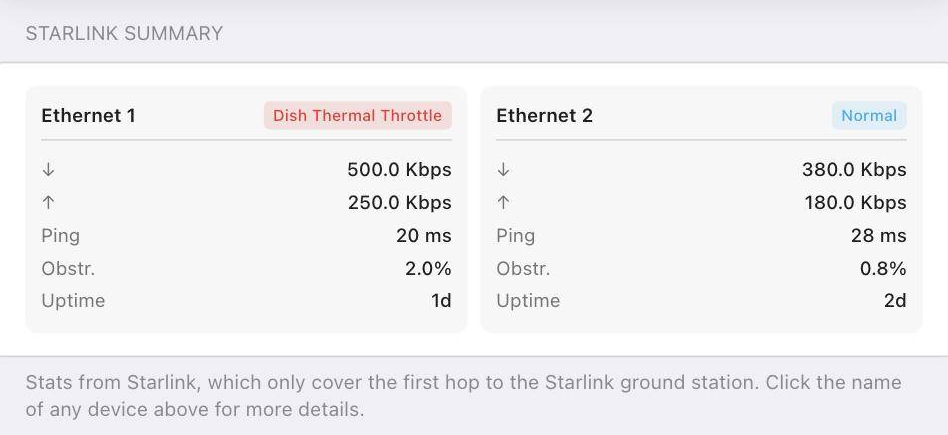
The Starlink Summary card shows the key stats for each connected dish at a glance. For each dish you'll see:
- Download and upload throughput (in Mbps)
- Ping (in ms) to the Starlink ground station
- Obstruction percentage - how much of the dish's sky view is blocked
- Uptime - how long the dish has been connected
- Status - Normal, Searching, or another state
These stats come directly from Starlink and cover only the first hop to the Starlink ground station, so they reflect satellite link quality independent of the rest of your internet path. Click the name of any dish to see more details about that connection.
Starlink Connectivity Card
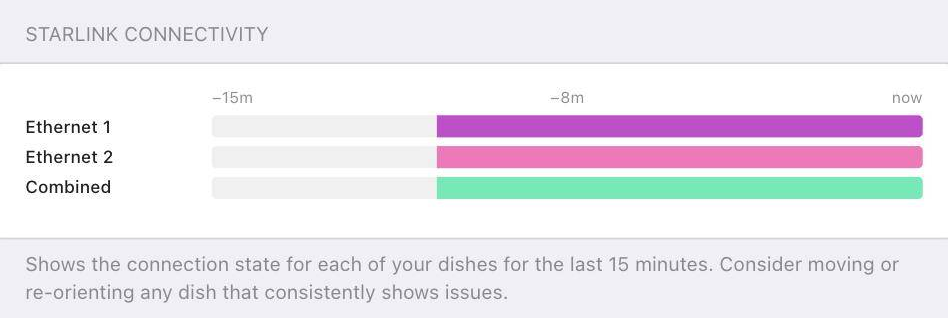
The Starlink Connectivity card shows a 15-minute timeline for each dish. Each row represents one dish, and the color indicates connection state over time. A Combined row at the bottom shows whether your dishes are filling in each other's gaps or overlapping. If the Combined row shows frequent yellow or gaps even when individual dishes look healthy, your dishes are likely seeing the same obstructions, which is a sign that repositioning or re-orienting one of them could help.
If a dish consistently shows issues in the timeline, consider moving or re-orienting it.
Obstruction Map
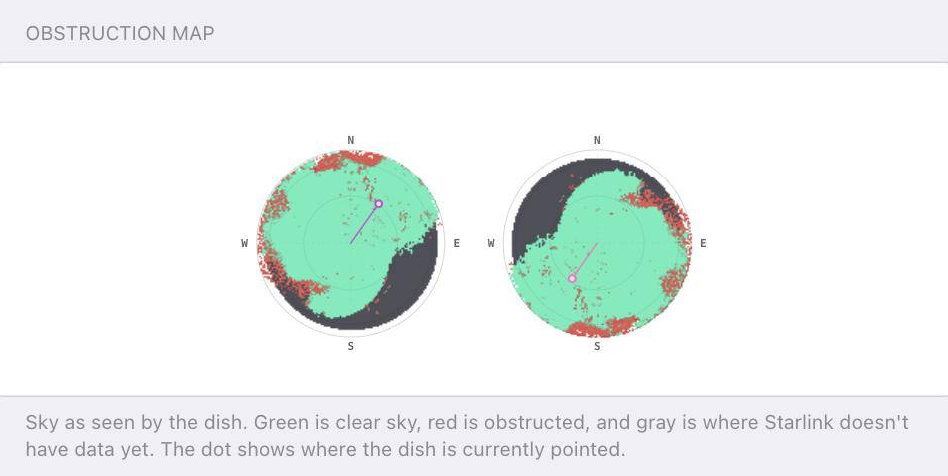
The Obstruction Map shows the sky as seen by each dish, rendered as a polar fish-eye view. Green areas are clear sky with a direct line of sight to satellites. Red areas are where the dish has been blocked. Gray areas are where Starlink doesn't have data yet.
The dot on each map shows where the dish is currently pointed. When multiple dishes are connected, their maps appear side by side so you can quickly spot whether two dishes are covering the same part of the sky or complementing each other.
When obstruction has a clear directional pattern, Speedify will suggest a specific rotation to reduce it, for example, "Most of the obstruction is to the south. Try rotating the dish 30° north."
Aligning Multiple Dishes
When you have two or more dishes, pointing them all in the same direction wastes your bonding potential, they end up seeing the same satellites and the same obstructions. The Starlink Alignment Wizard helps you orient each dish toward a different slice of sky.
Dish Orientation Card
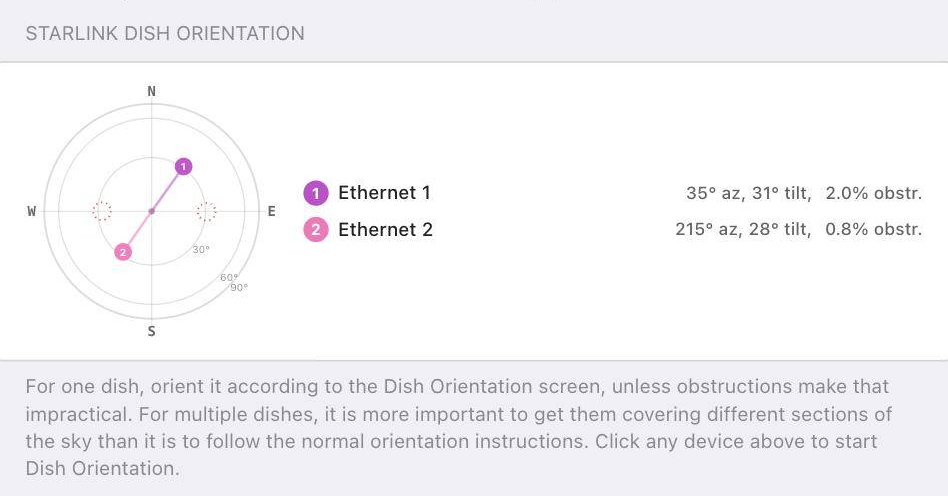
The Starlink Dish Orientation card shows a compass-style plot of where each dish is aimed, along with the azimuth (az), tilt, and obstruction percentage for each one. If two dishes are aimed at nearly the same azimuth, they're likely overlapping, and one of them could be rotated to cover a different direction.
Use Audio Tracking to Align
Select any dish in the Dish Orientation card to open the Alignment Wizard for that dish. As you physically rotate the dish toward its target, Speedify plays audio beeps that get faster as alignment error decreases. This lets you align the dish without having to watch the screen, useful when the dish is on a roof or in an awkward position.
Bonding Alignment
Under the Alignment section of Starlink Control, turn on Bonding Alignment. With this on, the Alignment Wizard calculates a target direction for each dish that complements the others, rather than repeating the standard single-dish orientation. This has no effect if you only have one dish.
Setup Analysis Report
The Setup Analysis section gives you a live report of what's working and what isn't across all your Starlink dishes. Tap any dish-specific line to jump directly to its alignment wizard. Connect a Starlink dish to populate this section.

Vehicle Platform Setting
If your Starlink dish is mounted on a moving vehicle, a ship, RV, or drone, turn on Vehicle Platform in the Alignment section. This suppresses misalignment alerts that would otherwise fire continuously as the dish moves, since constant movement is expected and not a problem to fix.
Did you know - Speedify works on routers too, so every device on your network can benefit from faster upload and download speeds without needing to install anything on each device individually. Learn more about Speedify for Routers.