
Android PDANet+ USB Tethering on a Windows PC
This article explains how to tether your Android phone to your Windows PC using the PDANet+ app over USB, so Speedify can use your phone's 4G/5G cellular connection alongside your other connections.
What You'll Need
- An Android phone with an active 4G/5G cellular connection
- A USB cable to connect your phone to your PC
- PDANet+ app installed on your Android phone
- PDANet+ Desktop installed on your Windows PC (covered in Step 2 below)
- Speedify installed on your Windows PC
Let's Get Started
Step 1
Open the PDANet+ app on your Android phone and check the box next to USB Tether to enable it.

Step 2
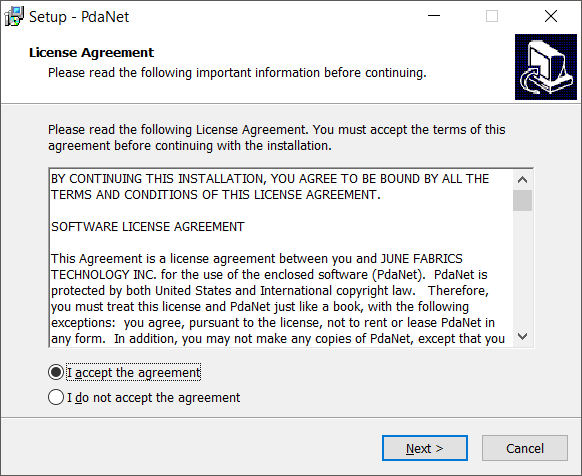
Download and install PDANet+ Desktop on your Windows PC. Visit pdanet.co/install to get the installer. If you run into any trouble during installation, refer to the PDANet+ help page for guidance.
Step 3
Connect your Android phone to your PC using the USB cable. Once connected, click the PDANet+ icon in the system tray at the bottom-right corner of your screen, then click Connect USB.

Step 4
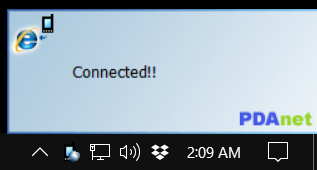
After clicking Connect USB, you should see a confirmation message indicating the connection was successful. Your PC can now use your Android phone's 4G/5G cellular connection through Speedify.
Did you know - Speedify can combine your phone's 4G/5G cellular connection with your Wi-Fi, or any other connection at the same time, giving you faster upload and download speeds? See Adding Internet Connections on PC to learn how.