
When Aero Won't Connect or Drops
Start with the symptom you see. Each row says where to look.
Beta - Speedify Aero is a beta test of the next generation of Speedify technology. The beta test is open to anyone with a Speedify for Routers license.
First, Run the Doctor
Over Secure Shell (SSH), run:
aero doctor --config /etc/speedify-aero/client.toml
It checks the configuration, permissions, each connection, whether the server is reachable, and the router's network settings, and prints a suggested fix for each problem it finds.
Common Problems
| What you see | What to check |
|---|---|
| Speedify Aero restarts every few seconds | No connection completed a handshake with the server. That is normal while the server is unreachable. Check that each connection works on its own and that nothing blocks the router's outgoing traffic. |
| Stuck on the activation screen | The code expires after 15 minutes. Use the dashboard's check button, or run aero account status to see what the router holds. |
| Asks to activate after every restart | The router's identity is not being kept. It must be stored under /etc/speedify-aero and not under /var, which is cleared on restart. The package does this; a custom configuration may not. |
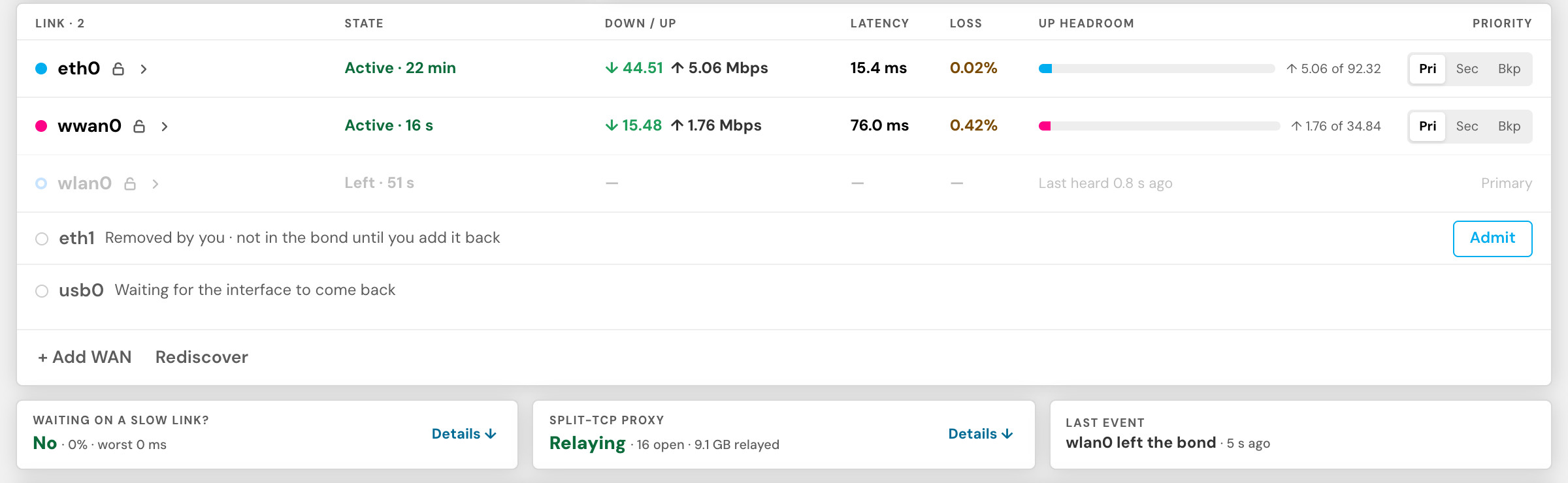
| Fewer connections than you expect | Run aero wan list. It lists every connection Speedify Aero knows about and why each is or is not in the bond. A connection needs a default route. |
| A connection keeps dropping in and out | Speedify Aero handles this, and the other connections keep carrying traffic. To keep an unstable line out of the bond altogether, see Choose Which Connections Aero Bonds. |
| The Speedify Aero page in LuCI says Aero's panel needs LuCI served by nginx | The router's web interface is still served by uhttpd, so nothing serves the panel. Install luci-nginx, then install Speedify Aero again, or run the installer again. See Install Speedify Aero on OpenWrt. |
| The dashboard is blank or looks plain | The router has a build that did not include the full dashboard. Install the official package. |
| Speed is no better than one connection | Check aero status to see that more than one connection is active. A connection marked secondary or backup is only used when the primary ones cannot keep up, and on the router package a cellular modem is secondary by default. See Choose Which Connections Aero Bonds. |
What a Dropping Connection Looks Like
A connection that has left the bond is faded in the dashboard's table, with the state Left and how long ago. Last event at the bottom names it. The connections that remain keep carrying traffic.
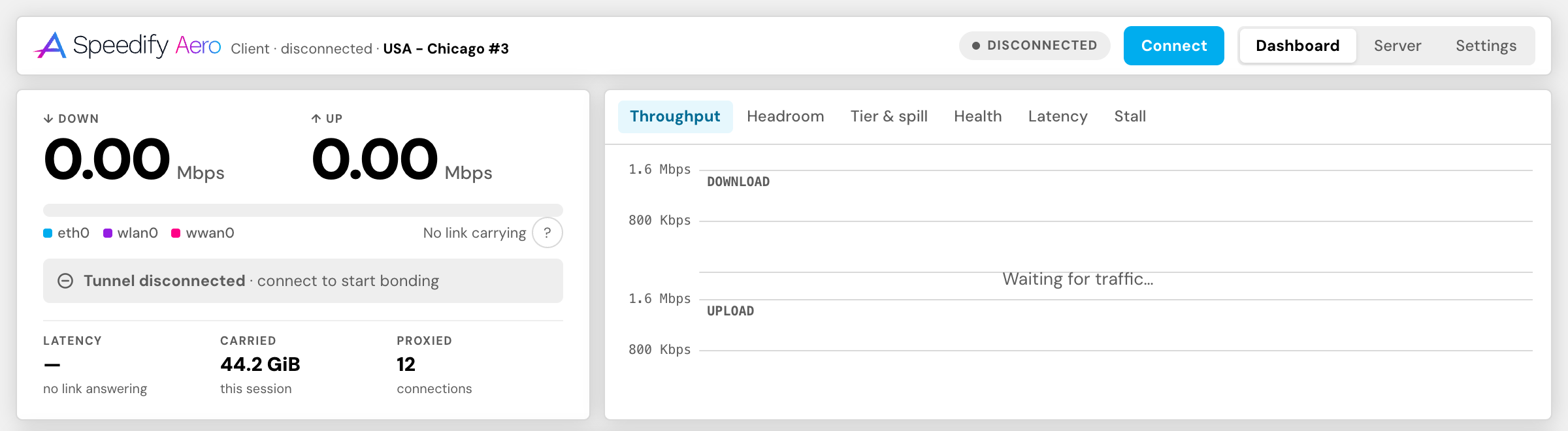
If the whole tunnel is down, the dashboard says Tunnel disconnected and the button at the top reads Connect. Each connection shows why it is down, such as Down: no interface or no route. Choose Connect to start bonding again once the connections are back.
Take a Look at the Log
logread -e speedify-aero
Or follow it live with logread -f -e speedify-aero.
Restart Aero
/etc/init.d/speedify-aero restart
To re-read the configuration file without a restart, run aero reload.
Still Stuck?
Email support@speedify.com and mention that you are running Speedify Aero. Describe what you see and when it started.
Did you know - Speedify Aero's dashboard shows every connection and why it is or is not in the bond. See Use the Speedify Aero Dashboard.