
Turn On Service Classes, Per-Flow Ordering, and Encryption
This article explains the advanced settings in the Speedify Aero dashboard: per-flow ordering, service classes, encryption, and the QUIC carrier, and when to change each.
Beta - Speedify Aero is a beta test of the next generation of Speedify technology. The beta test is open to anyone with a Speedify for Routers license.
Some of these take effect from the next connection. The dashboard says whether a setting is running now or waits.
Per-Flow Ordering
Speedify Aero sends your traffic over several connections and puts it back in order on the other end. With per-flow ordering, which is on by default, each conversation (such as one video call) is kept in order on its own, so a delay on one connection does not hold up unrelated traffic. Most people never need to change it.
Service Classes
Devices and routers can mark packets as time-sensitive, such as voice and video. Speedify Aero can honor those marks (called Differentiated Services Code Point, or DSCP) so that a video call is not stuck behind a large download on the same connection.
- Service classes are off by default.
- When on, each class of traffic gets its own path over each connection, the mark is carried to the cellular or cable network, and when connections are short of capacity, whole calls are shed rather than every call being degraded a little.
- Service classes only help if something marks the traffic. Many conferencing apps do, and your router can add marks for devices that do not.
To turn it on, open Settings, find Service classes under Per-flow traffic, and choose On.

Encryption
Speedify Aero can encrypt the traffic between your router and the Speedify server. There are two ways, and neither is on by default:
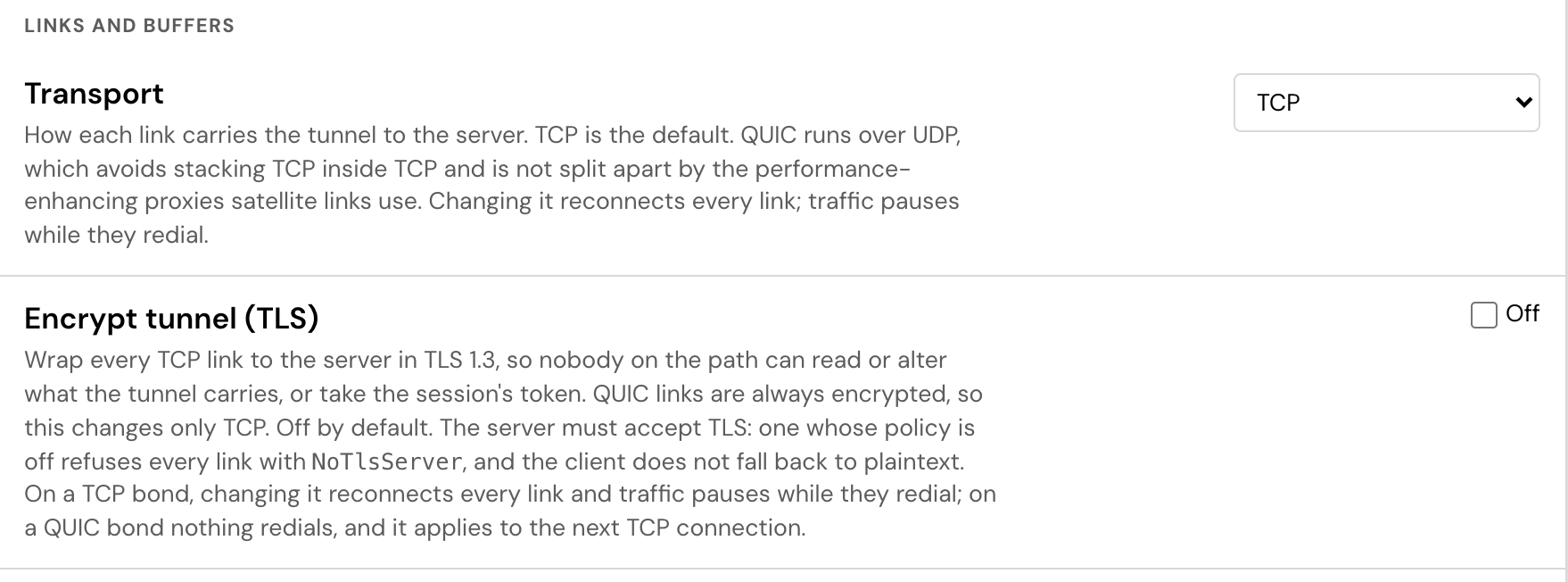
- Encrypt tunnel (Transport Layer Security (TLS) 1.3 over Transmission Control Protocol (TCP)). Turn it on under Settings. It applies to the router's TCP links.
- QUIC carrier. QUIC connections are always encrypted, so choosing QUIC (see below) also encrypts the tunnel.
Good to know - With Encrypt tunnel (TLS) on, Speedify Aero never falls back to unencrypted links. If the server does not accept encrypted links, the router cannot connect at all until you switch it off again. This matters mainly for a self-hosted server, which accepts encrypted links only if it has been set up to.
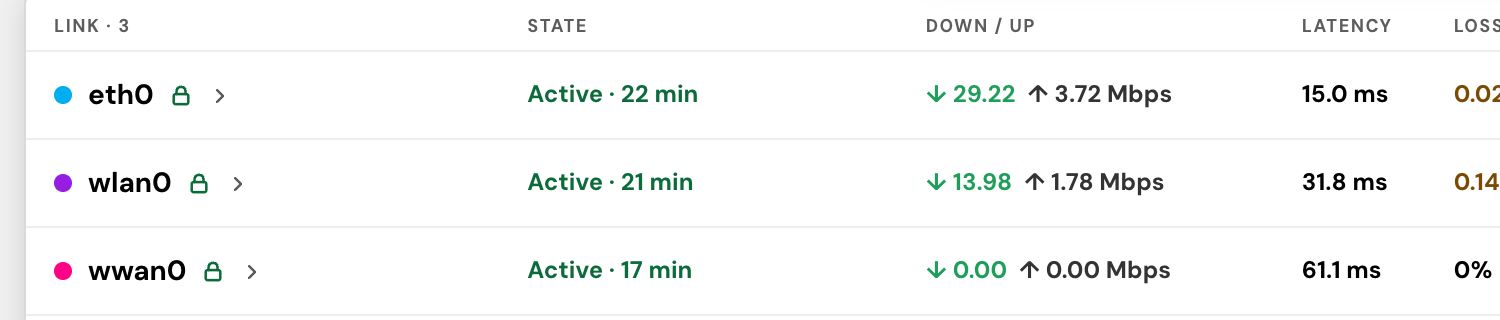
When the tunnel is encrypted, a closed lock appears beside each connection in the dashboard.
Turn this on if you do not trust the networks your connections pass through, such as shared Wi-Fi or a public hotspot.
Speedify's servers accept encrypted links. A self-hosted server accepts them only if it has been set up to.
The QUIC Carrier
Speedify Aero normally uses one TCP connection per link. QUIC, over User Datagram Protocol (UDP), is available as an alternative: under Settings, set Transport to QUIC. If a switch to QUIC cannot connect, Speedify Aero goes back to TCP and the dashboard says so. QUIC is encrypted, so it is also the way to encrypt a bond without using Encrypt tunnel (TLS). Change this only if you have a reason, such as a network that handles TCP badly.
Settings That Cross the Tunnel
Most settings are marked Both ends. Speedify Aero tells the server about them so they apply in both directions, which is why upload and download both change. The exceptions are the settings that belong to the router alone, such as the transport, encryption, and the number of connections per link.
A server can pin a setting, which keeps the server on its own value. The dashboard then shows Pinned by server beside the setting, with the server's value. A change you make is still saved on the router, and it applies when the pin ends or on another server. A self-hosted server pins settings only if its operator set it up to.
Did you know - Speedify Aero answers Prometheus scrapes, so Grafana can chart each connection over time. See Monitor Speedify Aero with Prometheus and Grafana.