
Speedify Bonding Setup on OpenWrt
This article explains how to configure OpenWrt so that Speedify can bond multiple wide-area network (WAN) connections on your router for faster upload and download speeds.
How OpenWrt Handles WAN Connections
By default, OpenWrt wraps all of your WAN interfaces into a single bridge network. This gives applications a uniform interface to reach the internet, but it prevents Speedify from seeing each connection individually. Speedify requires each WAN to be a standalone network with its own default route in order to bond your internet traffic. Some router manufacturers, such as GL.iNet, already configure WANs outside of a bridge.

Let's Get Started
Step 1
Remove all devices currently assigned to your br-wan bridge network (or a similarly named bridge network) in the OpenWrt web interface.

Step 2
Remove any LAN port you want to use as a WAN connection from the LAN bridge, usually named br-lan.

Step 3
Navigate to Network > Interfaces and select Add New Interface at the bottom of the page. Add each of your WAN connections as a standalone interface (not inside a bridge).
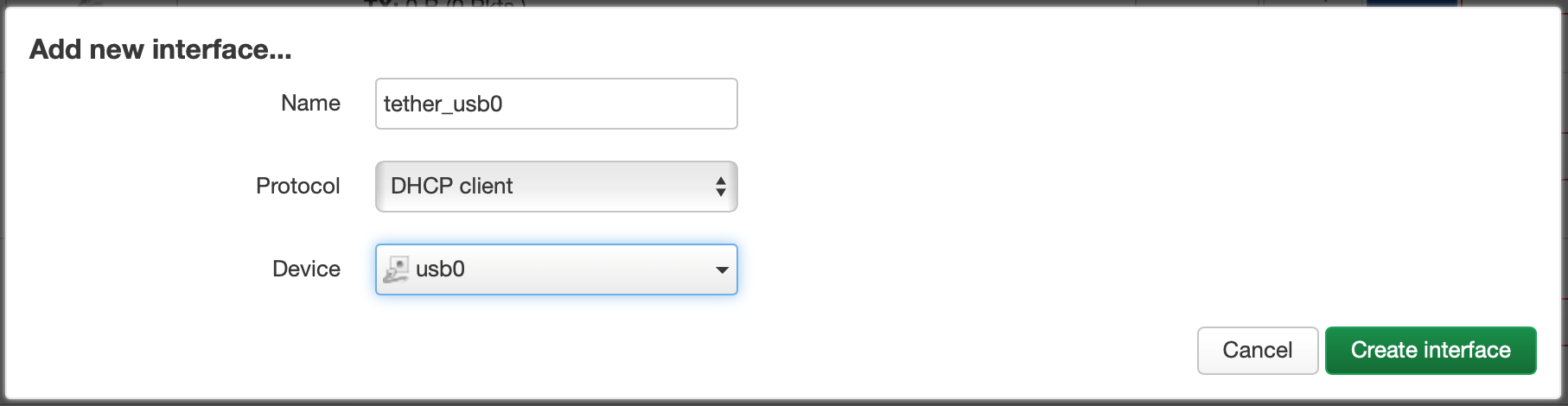
Step 4
Add each WAN device to the firewall zone that covers WAN traffic. You should see each newly created interface listed and assigned to the WAN zone.
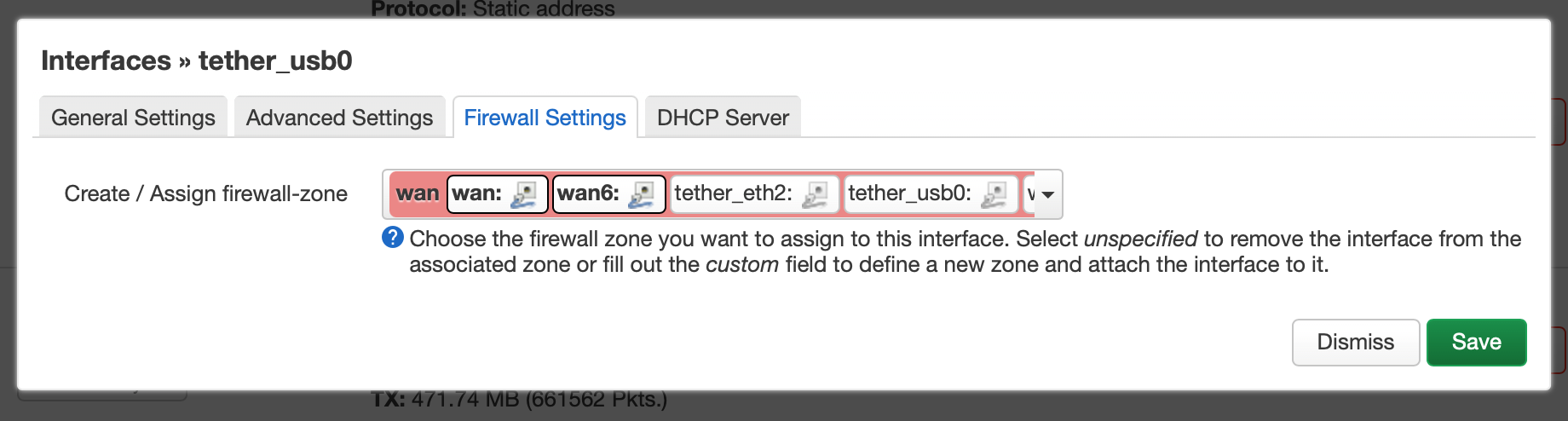
Step 5
Configure a unique gateway metric for each WAN connection, including any existing WANs that don't already have one set. A lower metric number means your router is more likely to use that connection as the default route when Speedify is not running.
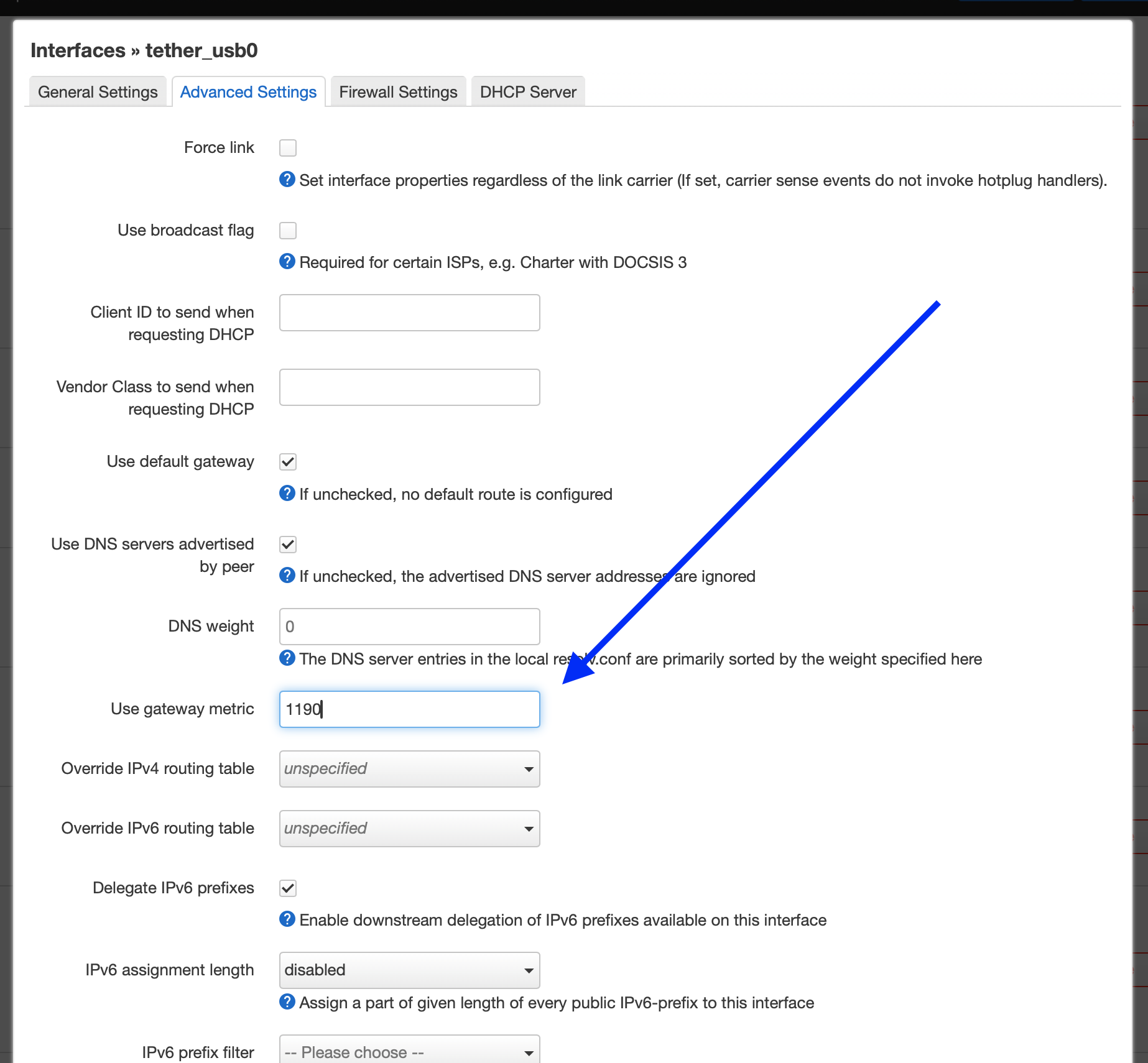
Step 6
Select Save and Apply to commit all of your changes.
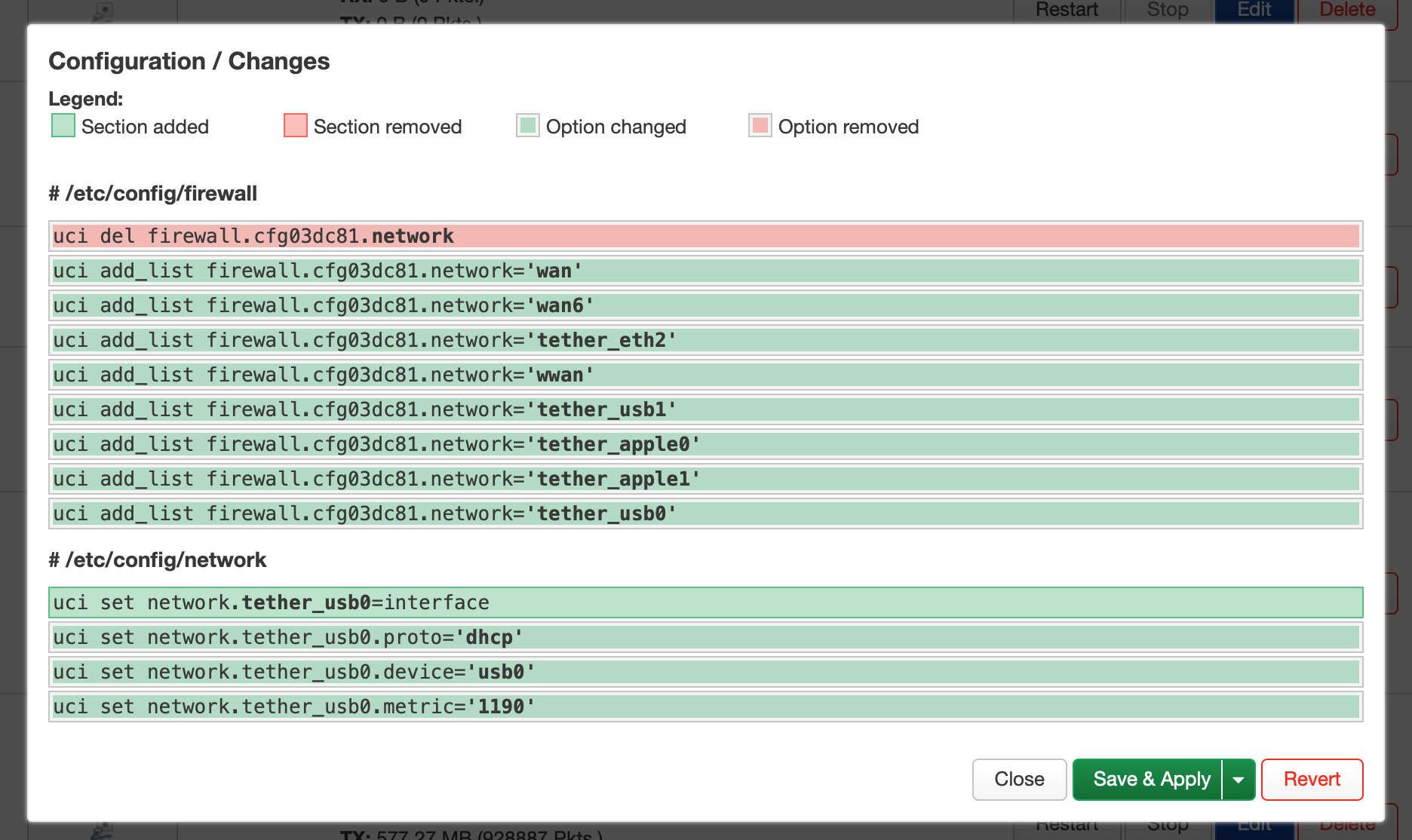
Bonding should now be working on your router. All of the WAN connections you configured will appear as individual connections in the Speedify interface.
Did you know - Speedify offers Dedicated and Self-hosted Servers, giving your team more control over where your internet traffic is routed? Learn more about Speedify Dedicated and Self-hosted Servers.