
Speedify Window Location Settings on MacOS
This article explains how to control whether the Speedify interface appears in your menu bar or as a standalone floating window.
Let's Get Started
Step 1
Open Speedify on your Mac, then go to Settings and find the Window Location option.
Step 2
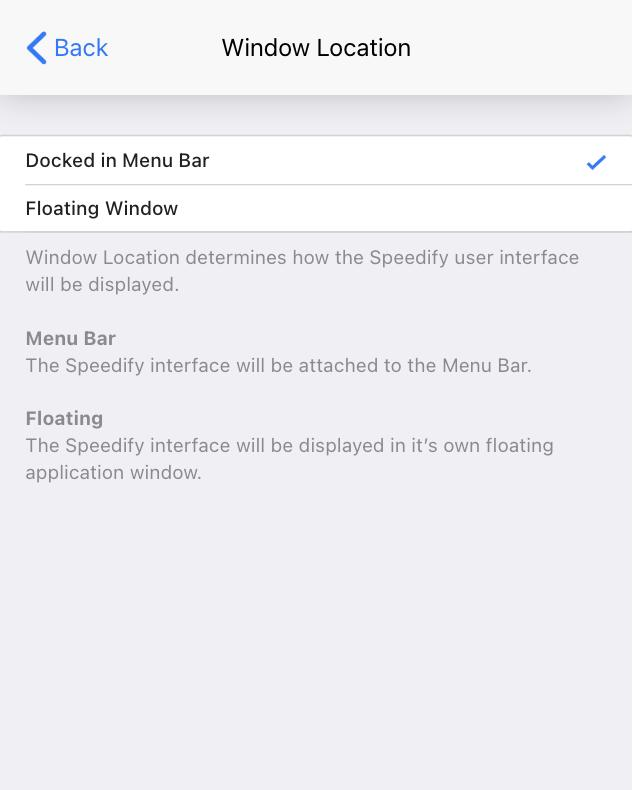
Choose the window mode that works best for you. Speedify offers two options:
- Docked in Menu Bar - The Speedify interface attaches to your Mac's menu bar, keeping it out of the way until you need it.
- Floating Window - The Speedify interface opens as its own standalone window on your desktop.
You should see the Speedify interface move to the location you chose right away.
Did you know - Speedify can combine multiple internet connections at once for faster upload and download speeds, rather than just switching between them? Learn how to get started with Speedify.