
Changing DNS Settings in Speedify
This article explains how to change the DNS server that Speedify uses for your VPN connection. No matter which DNS service you choose, all DNS requests are routed through Speedify's encrypted tunnel and appear to come from the Speedify server's public IP address.
DNS Options in Speedify
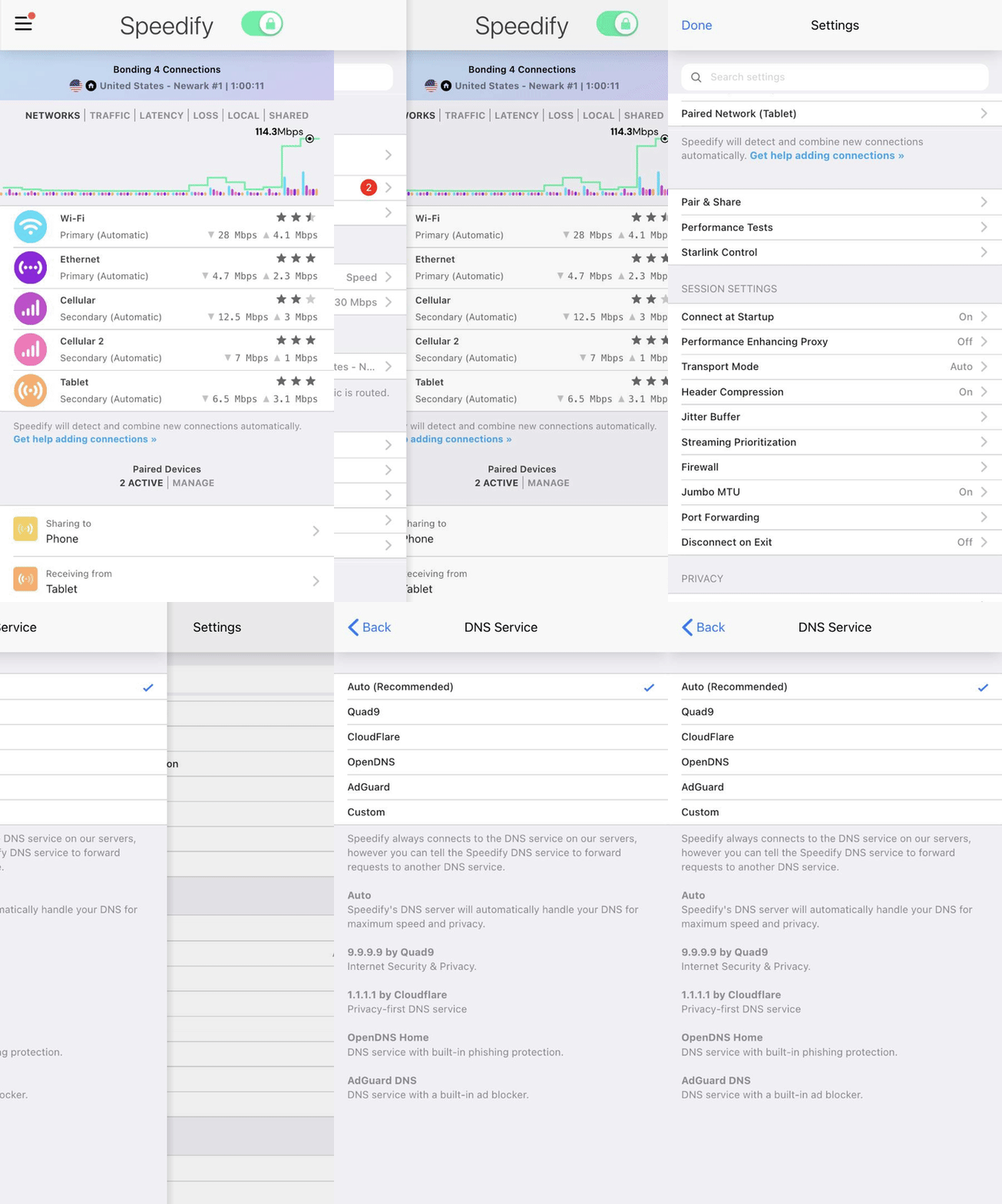
Speedify supports several popular DNS services out of the box. Each one has its own strengths, so you can pick the one that fits your needs:
- Auto (Recommended) - Speedify's default DNS server, chosen automatically for maximum speed and privacy.
- Quad9 - 9.9.9.9 by Quad9, a DNS service focused on internet security and privacy.
- CloudFlare - 1.1.1.1 by Cloudflare, a privacy-first DNS service.
- OpenDNS - OpenDNS Home, a DNS service with built-in phishing protection.
- AdGuard - AdGuard DNS, a DNS service with a built-in ad blocker. Websites known to serve ads can't be looked up, resulting in fewer ads on web pages.
- Custom - Enter any DNS server by IP address or HTTPS URL.
Let's Get Started
Step 1
Open Speedify on your device and connect to a server if you haven't already.
Step 2
Open the ☰ menu in the Speedify app.
Step 3
Under Privacy, tap or click DNS Service.
Step 4
Select one of the available DNS services from the list, or choose Custom to enter a DNS server IP address or HTTPS URL. Speedify asks you to reconnect so the change takes effect.
Did you know - Speedify can combine multiple internet connections at the same time for faster upload and download speeds, not just switch between them. See how to combine multiple connections to learn more about how Speedify works.