
Connecting a Windows PC to Internet with a 4G / 5G USB Dongle
This article explains how to connect your Windows PC to the internet using a 4G/5G USB dongle.
What You'll Need
- A 4G/5G USB dongle with an active data plan
- A Windows PC with an available USB port
- The setup software that came with your dongle (if applicable)
Let's Get Started
Step 1
Plug your 4G/5G USB dongle into a USB port on your PC.
If you're on Windows 10 or Windows 11, your PC may set up the connection automatically. To check,
go to Settings -> Network & internet and the connection should show up. In this case, it is shown as "Ethernet 3"
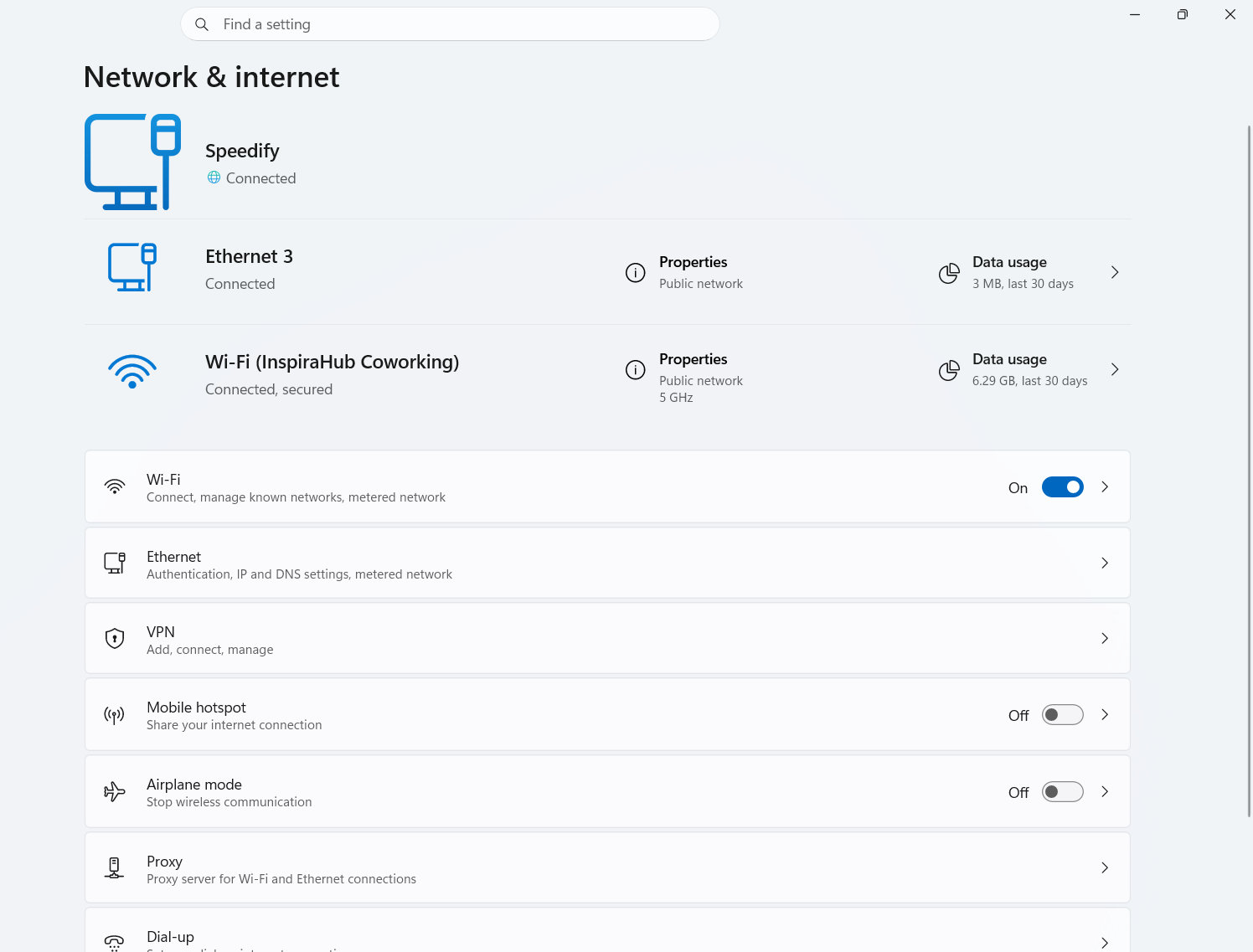
If nothing appears, run the installer program that came with your dongle. The installer may be stored on the dongle itself, open This PC and look for a CD drive or removable drive, then run the setup program. You may need to restart your PC after installation.

Step 2
Once the dongle is installed, connect to the internet. If your dongle came with its own connection software, open it and use it to connect. Otherwise, your PC should recognize the dongle as either a cellular adapter or a Wi-Fi connection and connect automatically.
If you can't connect, check whether Windows installed a cellular adapter:
- Press the Windows key + X and select Network Connections.
- Click Change adapter options on the right.
- Look for your 4G/5G dongle in the list of adapters. If it's not connected, right-click it and select Diagnose this connection.

If you're still unable to connect after running the diagnostic, contact your internet service provider (ISP) or network carrier for further help.
Did you know - once your dongle is connected, you can use Speedify to combine your 4G/5G cellular connection with any other available internet connection for faster upload and download speeds and a more reliable connection. Learn how to do that with Speedify.