
How do I connect my PC to wired Ethernet?
This article explains how to connect your PC to the internet using a wired Ethernet cable.
What You'll Need
- An Ethernet cable
- An available Ethernet port on your PC
- A modem or router with an available Ethernet port
Let's Get Started
Step 1
Connect one end of your Ethernet cable to your PC and plug the other end into your modem or router. In most cases, your PC will connect to the internet automatically within a few seconds.
If you're online, you're all set. If the connection doesn't come up on its own, move on to Step 2.
Step 2
If your PC isn't connecting, open Network Connections to check the status of your Ethernet adapter. Press the Windows key + X and click Network Connections, then click Ethernet on the left side of the screen.
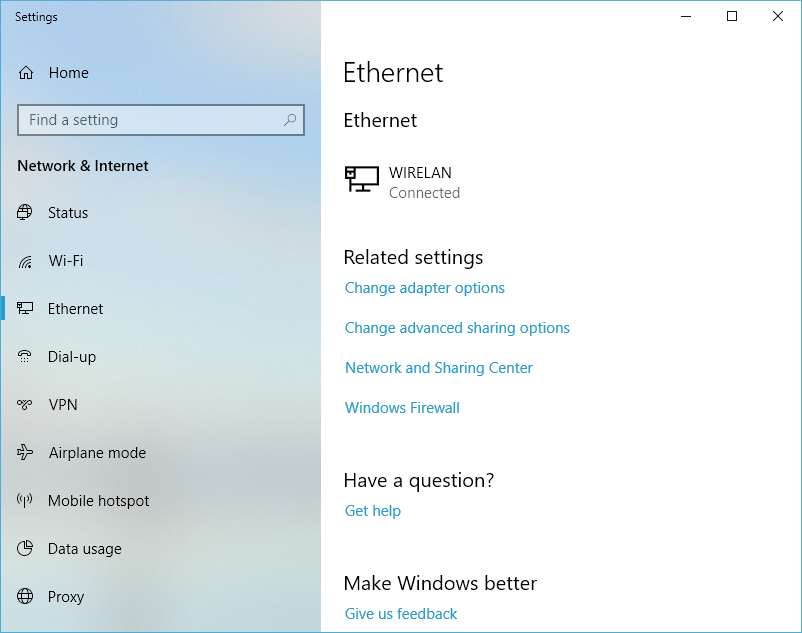
If you don't see an Ethernet entry listed, click Change adapter options and confirm that an Ethernet adapter appears there.

Step 3
Check what status message appears next to your Ethernet adapter:
- Network cable unplugged: reseat the cable on both ends, or try a different Ethernet cable.
- Connected, no internet: your PC sees the network but can't reach the internet. Contact your Internet Service Provider (ISP) for further help.
- Connected: your connection is working. If you're still having trouble, try restarting your modem or router.
Did you know - you can combine multiple internet connections at once on your PC instead of just switching between them? Speedify lets you use your wired Ethernet connection alongside a Wi-Fi connection or a 4G/5G cellular connection for faster upload and download speeds and a more reliable connection. Learn how to do that with Speedify.